Live presentation themes
Change the mood. Keep the slide.
Preview a theme against the presentation you actually made. Apply it when the colors and type feel right, or tune the theme into your own system.
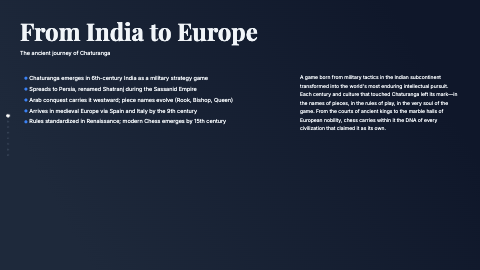
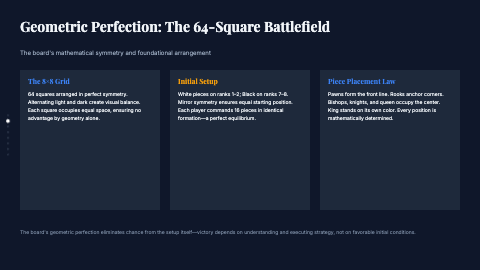
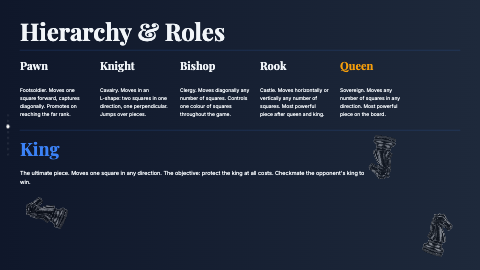
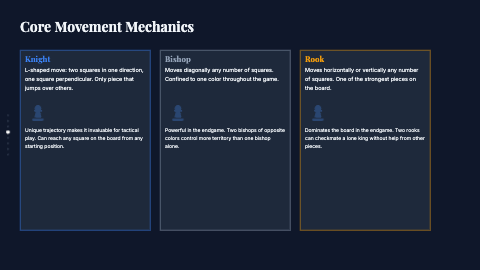
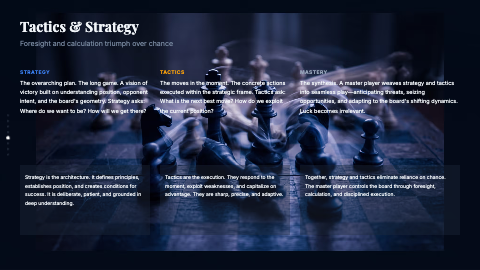
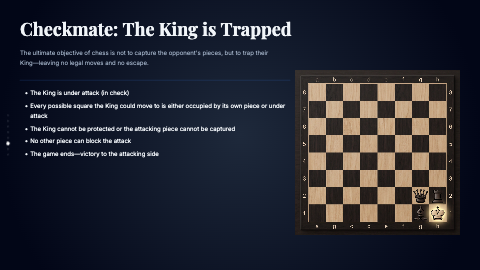
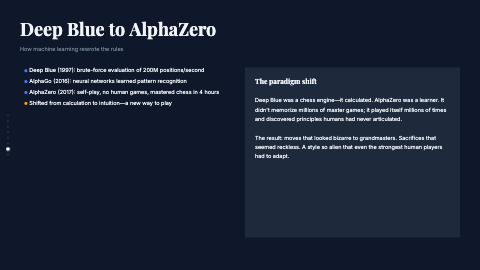
Theme Library hover previews restyle slide one and its thumbnail instantly before an Editorial theme is deliberately applied.




















Built into the editor
Judge a theme on real slides, not a swatch.
Theme previews preserve the slide's content and layout while you compare a different visual direction.
Open Theme
Open Theme in the ribbon. It starts on Colors, where the current roles and the Theme Library stay within reach.
Preview on hover
Hover over a Library theme to preview it on the current slide before making a deck-wide decision.
Apply or customize
Apply the theme you want, then refine its colors and typography while your slide objects remain fully editable.
What makes a presentation theme useful?
A useful theme is more than a background color. It defines reusable color and type roles that keep a title, body copy, accents, and surfaces related across the deck. That gives the presentation consistency without turning every slide into the same locked layout.
Decka lets you compare themes against the content already on your slide. Open Theme, switch from Colors to Library, and hover over an option for a live preview. Nothing is committed until you choose Apply. From there, you can continue editing both the theme and the individual objects it styles.
FAQ
Presentation theme questions, answered
Does applying a theme replace my content or layout?
No. A theme changes the deck's color and typography roles; it does not replace your text, media, charts, or object positions. A different font can rewrap text, so review dense slides after applying it.
Does a theme affect one slide or the whole deck?
Applying a Library theme changes the shared deck theme, keeping colors and type consistent across slides. Individual objects can still be styled as exceptions when a composition needs one.
Can I use my own brand colors and fonts?
Yes. Start from a Library theme or the current deck, then edit its color roles and font pairing into your brand system. The slide objects remain editable while you tune the shared theme.
Start with AI. Finish with your eye.
Create the first draft in seconds, then shape every slide until it is unmistakably yours.
Create a presentation