A show of hands vote for a class with no devices
Show of Hands turns a show of hands vote into a chart on the big screen. Only your phone scans the code. You tap a tile for every raised hand, then reveal the spread to the class. No student needs a device.
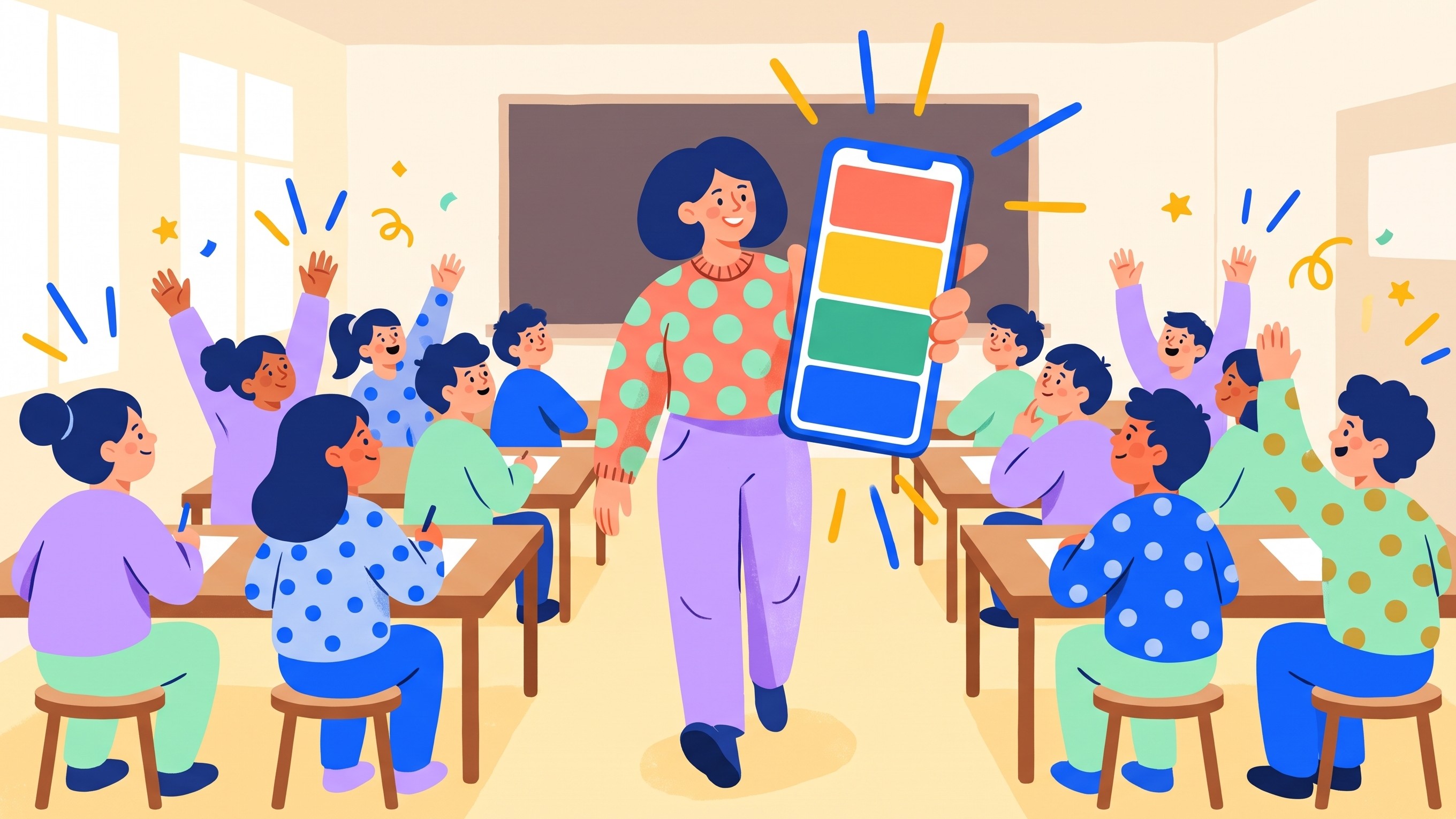
How a show of hands vote works with one phone
You scan the code on the big screen with your own phone, and it becomes the counter. Nobody else scans anything. The big screen tells the room as much: No phones needed. Except one.
Press Start counting on your phone or in Decka's panel, and the first question opens. Read it out, or show it typed. Hands go up for A, B, C or D.
Walk the room and tap a tile for each hand you see. Each tap clicks, pops and floats a +1, so you can keep your eyes on the class. Undo takes back the last tap, and the −1 strip under each tile fixes a slip.

While you count, the big screen shows only the total, as tally marks and a count of hands. The spread stays hidden until you press Reveal, so nobody waits to see where the crowd went.
Four ways the class can answer
Pick one in How the class answers. Your phone shows one big tile per answer, laid out the same way for every question.
- Hands up: A to D. The plain show of hands. With answers typed, the phone shows as many tiles as you typed.
- Four corners: walk to a corner. A and B are the front corners of the room, and C and D the back. Your tiles sit where the corners are. There are four corners questions for every age to start with.
- Fist to five: 0 to 5 fingers. Students show how sure they are, from a fist for Lost to five fingers for Could teach it. Read more on fist to five and what it can and can't tell you.
- Stand or sit: true or false. Students stand for True and stay seated for False. Type your own two answers and it becomes stand for one, sit for the other, like the classic stand up sit down game.
The reveal: the spread, the right answer and the average
Press Reveal and the bars grow, each with its count and its share of the room. If you typed a right answer, it lights up, and the big screen says how much of the class got it right.

No right answer typed? Tap Mark right under the tile on your phone, and it lights up on the big screen at once. For an opinion question, leave it, and the big screen names the top answer or the tie.
In Four corners, the big screen draws the room from above. The little people mill in the middle while you count, then walk to their corners at the reveal. In Fist to five, it shows the room's average out of five and how many hands were at two or fewer.
Revealed too soon? Keep counting reopens the count. Then press Next question.
Classroom voting without student devices
Every other phone that scans the code is told No phone needed, and to put it away. It can't count, and it can't reveal. The big screen names phones by number only, so a name typed at the door never reaches the projector.
If another phone scanned first and took the counter, take it back in two steps. On your own phone, under No phone needed, tap the link that says it's your phone, and it shows your phone's number. Then, on the computer, press Phone N is mine: let it count in Decka's panel, with your number in it.
Only the computer can hand over the counter, so a student who scans first can't keep it. Their phone, and any phone it let in to help, loses the counter at once.
A second adult can help count
In a big room, split the counting. Another adult scans the code and presses Ask phone N to let you count. Your phone shows the request, and you press Let it count or No.
Both phones add to the same count, and only your phone reveals. Helper phones in the settings runs from 0 to 3. Set it to 0 and the counting stays on your phone.
Typed questions, or asked out loud
Questions are optional. Leave the list empty and ask out loud: the big screen shows Question 3, plain A to D, and Hands up for A, B, C or D. Questions asked out loud sets how many to plan for, and you can add One more question at the end.
Or type up to 30 questions, each with its answers and a right answer. In Four corners, A to D are the corners. In Stand or sit, A is True and B is False.
Five quick starts set the activity up in one tap:
- Asked out loud: Hands up, five questions, nothing to type.
- Quick quiz, A to D: four science and maths questions with the answers set.
- Four corners debate: three statements, from Strongly agree to Strongly disagree.
- Fist to five check-in: how well the class understands today's lesson, and how ready they feel.
- True or false: stand or sit: four statements, such as Bats are blind.
Every question side by side, and the report
After the last question, press See every question. The big screen shows each question's spread in small charts, with a headline such as the average right, the hardest question or the closest split.
Press End and save the report, and the report keeps every question's bars, how many questions were asked and how many hands were counted.
FAQ
Show of Hands, explained
What is a show of hands vote?
A vote where everyone raises a hand for their answer and someone counts. In Show of Hands, that someone is you, with your phone, and the big screen turns your count into a chart.
Can you do classroom voting without devices?
Yes. Only your phone scans the code. Students answer with their hands, by walking to a corner, by holding up fingers, or by standing up or staying seated.
Can I play four corners with it?
Yes. Choose Four corners: walk to a corner. Your tiles match the room's corners, and the reveal walks little people to each corner on the big screen.
How does fist to five work here?
Students hold up zero to five fingers, and you tap the tile for each hand's number. The reveal shows the room's average and how many hands were at two or fewer.
Can a second adult help count?
Yes. Their phone asks yours, and you let it in. Both phones add to the same count, and only yours reveals.
Do students see the votes as they come in?
No. The big screen shows only the total until you press Reveal, so the first hands up don't sway the rest.